Make a meme with words, shapes, and a clear idea
A practical workshop for comparison cards, dialogue bubbles, and escalating jokes, with original Memefile layouts and worked examples.
A recognizable reaction photo can save a caption some explanation. It can also make a new joke depend on a reference the reader does not know. A text-led layout gives the words that job: the reader should understand the situation, the turn, and the connection between them without needing an encyclopedia entry first.
These three Memefile layouts were made for that purpose. Their backgrounds contain only geometric shapes, and every caption starts as an editable text layer. Choose the structure that matches your idea before polishing the font.
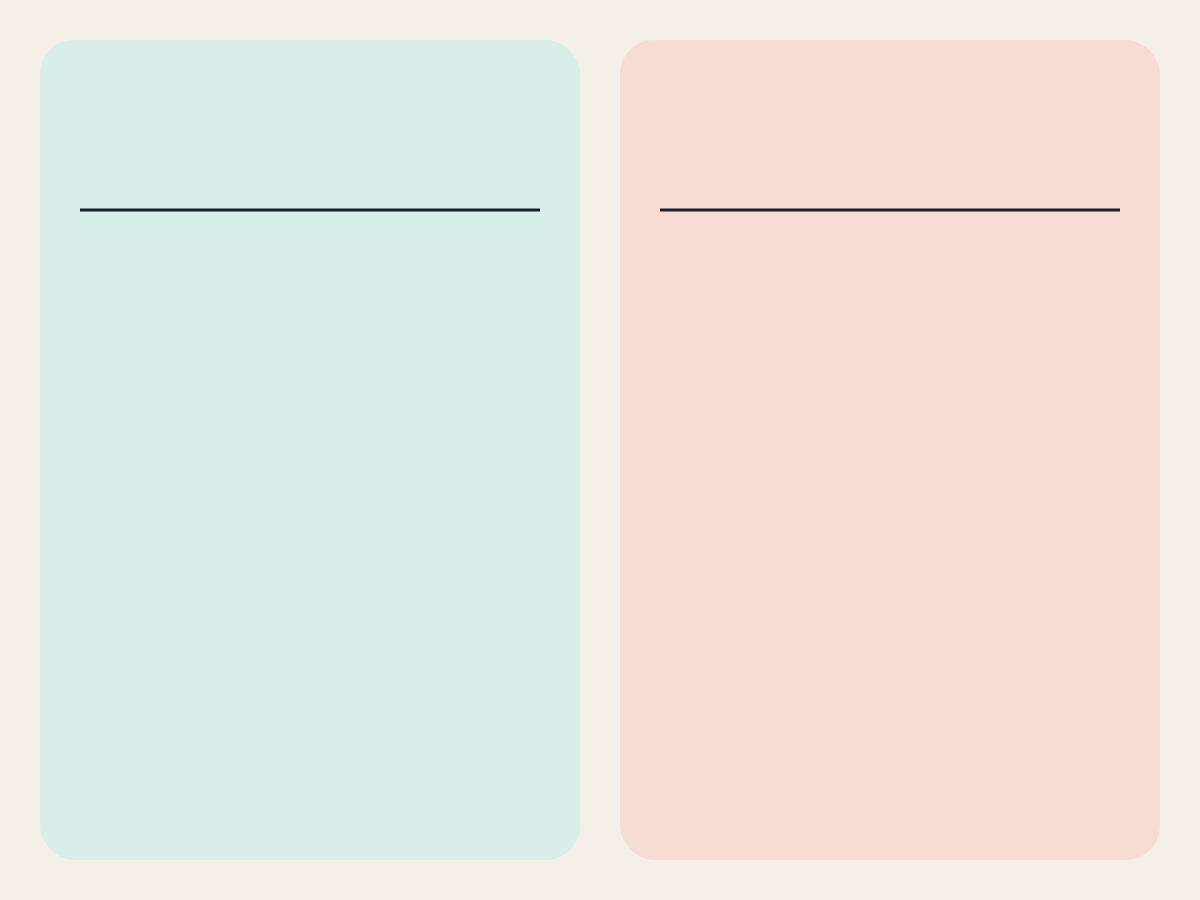
Two cards for one contrast
Use Expectation / Reality Cards when the joke compares a plan with its outcome. Both halves should answer the same question. “Clear five browser tabs” and “Open twelve comparison reviews” share an activity and reverse its intended result.
A weaker pairing might be “Have a productive morning” and “Pizza.” There could be a funny story connecting those words, but the image does not supply it. Narrow the setup or make the outcome concrete enough that a reader can infer the missing moment.
The headings are editable too. “What I said / What I meant” works for a polite statement and its private translation. “Before / After” works for a change over time. Keep both main captions large enough to read in a small message preview; do not use one panel as a paragraph-sized explanation of the other.
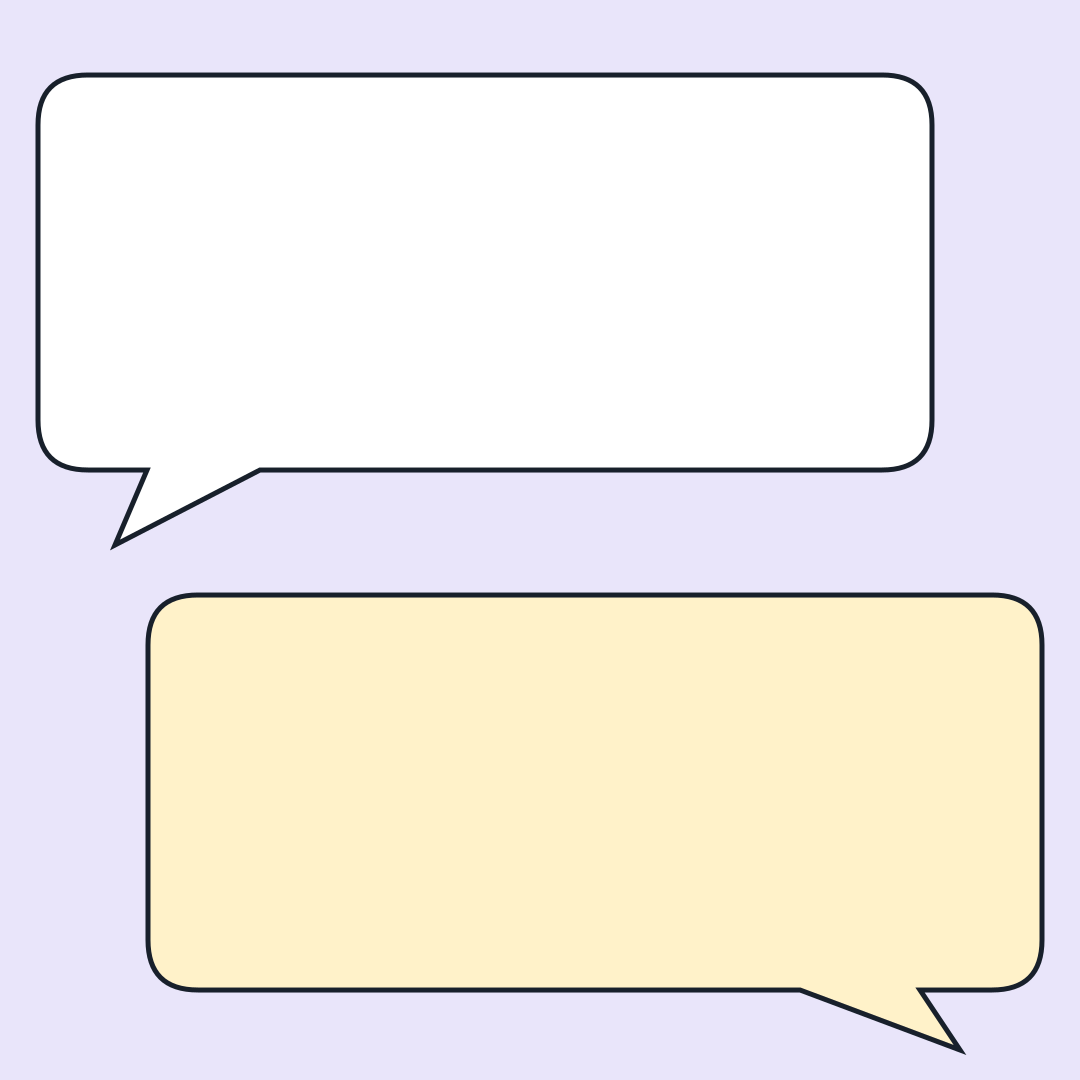
Two bubbles for a competing impulse
Use Inner Monologue Bubbles for an invented exchange. The first voice can be sensible: “We only need a simple spreadsheet.” The reply reveals the detour: “I have designed a dashboard for the dashboard.” The repeated noun makes the overcomplication visible without extra narration.
Read your exchange aloud. If the second line only says “No,” it may need a more specific temptation. If both lines require a speaker biography, simplify the situation or add short labels. The bubble layout deliberately has no messaging-app branding, timestamps, or real profile pictures; it presents a joke, not evidence that somebody said it.
You can reveal the reply as a GIF. Hide the second caption in Layers, capture a frame in Animate, then show it and capture another. Give the complete exchange enough time to be read. The empty bubble in the opening frame can act as a pause.
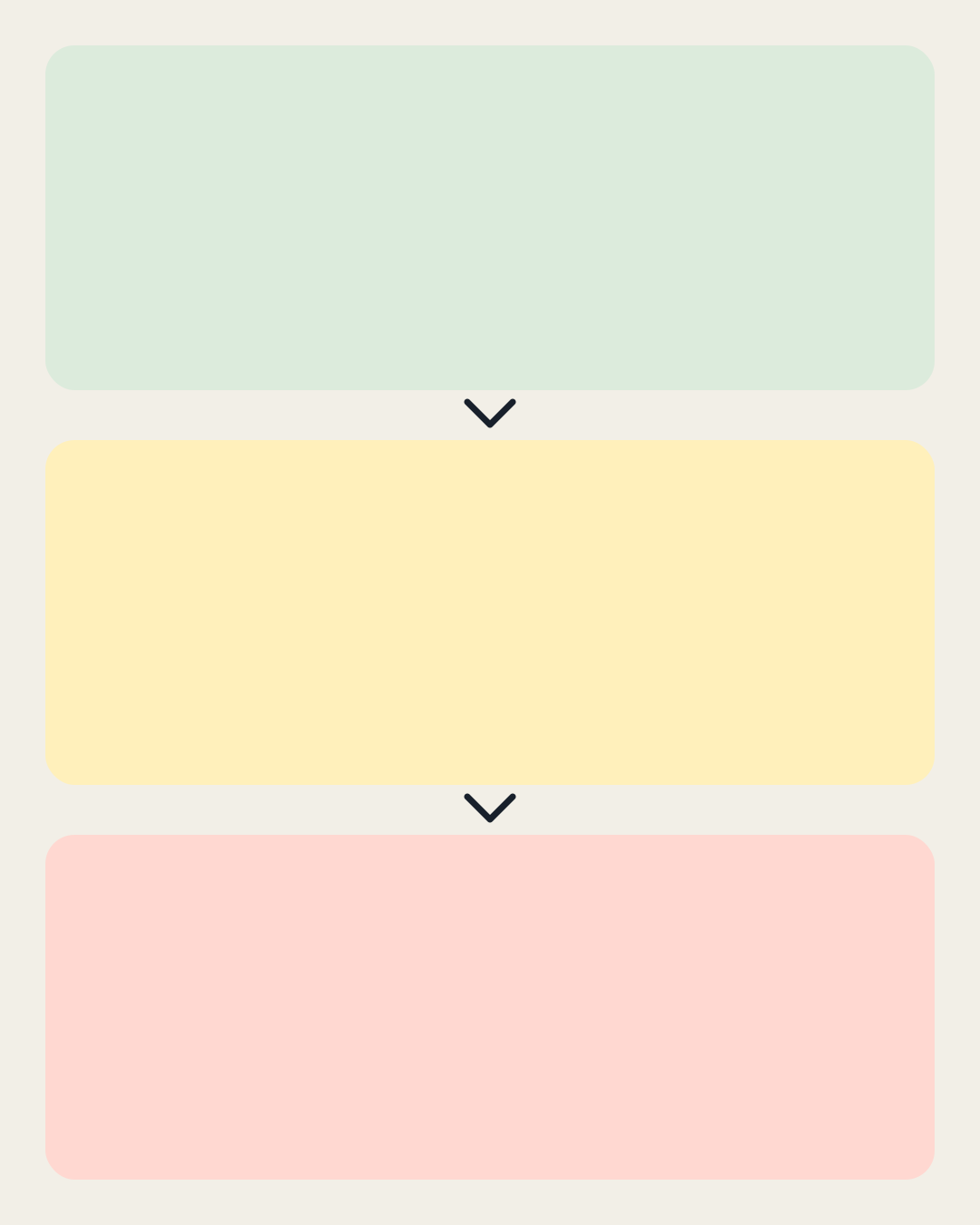
Three panels for a disproportionate detour
Use Escalating Plan when one decision causes a larger one. A useful example is choosing a group-chat name, running a shortlist poll, and forming a committee to audit the poll. The final step is excessive, but the middle step explains how the group got there.
Check the middle panel by covering it. If the joke loses nothing, it is probably repeating rather than escalating. Change it so that it creates the problem the last panel pretends to solve. Escalation can grow in effort, cost, time, or absurdity; it does not have to grow in hostility.
For an animation, reveal one caption per frame and hold the last frame longer. In Animate, each captured frame has its own duration. Preview the loop before downloading so the jump back to the modest first step feels deliberate.
Keep a source you can revise
A downloaded PNG or GIF is a finished image. An editable project is the working source: it keeps captions, image and shape layers, the canvas, and captured animation frames with their individual timings. Save both when you expect to make another version. You can open a project on another device by moving the file yourself; the editor does not upload or sync it to an account.
The automatic draft stays in this browser. Wait for “Draft and frames saved on this device” before leaving. Browser storage can be cleared or unavailable, so use Export → Save editable project for a copy you control. Shared uploaded images appear once in the project file even when several frames reuse them.
How these layouts were made
On September 30, 2026, the three backgrounds were authored directly as SVG code for Memefile with AI assistance. They use rectangles, paths, solid fills and strokes. They contain no photographs, stock illustrations, external fonts, logos, scripts, or linked resources. The names describe the arrangements, not a claim to have invented comparison jokes, dialogue memes, or escalation as a format.
The original background files are available here: comparison cards, dialogue bubbles, and three-step panels. This is the creation record referenced by their image-review metadata. The site uses the SVG files directly, and the generator adds editable captions separately.
These creation notes cover those three backgrounds. A photo, logo, screenshot, or other image that you add to a composition has its own provenance and permissions. Archive templates elsewhere on the site also have separate review records; the original-layout label does not apply to them.
- guides
- templates
- generator